
 Indonesia
Parking: Shift to “P” Or Pull the Handbrake First?
Terakhir Diubah : 03:06:57 - Tuesday, 06 September 2022
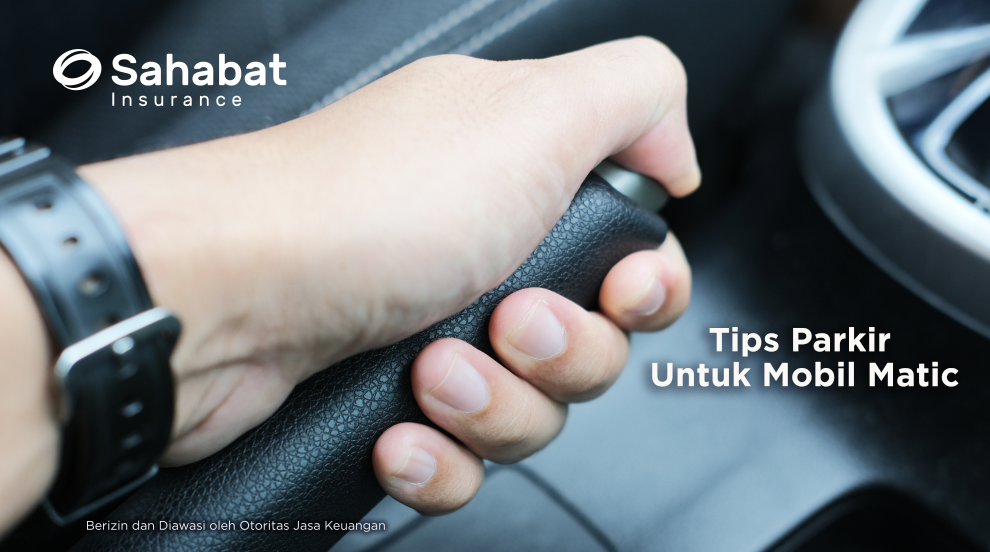
The parking brake is essential to your safety and those around you. If you have an automatic gearbox, apply the handbrake first, then put it in P. This ensures that the car’s weight isn’t resting on the parking pawl. If you don’t use the handbrake, you’ll be putting constant pressure on the parking pawl and transmission components which will eventually fail, leading to costly repairs.
Your car’s brakes are controlled by something called a parking pawl.The parking pawl locks the transmission's output shaft to the transmission casing by engaging a pawl (a pin) that engages in a notched wheel on the shaft, stopping it (and thus the driven wheels) from rotating.When you shift into “P” first, the weight of the car rests on that tiny metal bit we call the parking pawl. That’s not great. When you do this, you will hear the unpleasant “clunk” when shifting out of “P” later.
If you have an automatic transmission, apply the handbrake first, then put it in P. Shifting to 'P' before pulling the handbrake is how you damage your automatic transmission.
Berita Lainnya
Safely Travel With Sahabat Insurance
If you’re travelling abroad, it's important to take out appropriate travel insurance before you go. ANANDA (Amankan Perjalanan Anda) is an insurance product from Sahabat Insurance that provides protection and anticipates the unexpected that may occur due to risks during business trips or tours.
Benefits you can get:
- Death & Permanent Disability due to accident
- Medical Expenses
- Emergency Medical Evacuation/Medical Repatriation
- Loss of Baggage & Personal Effects
- Baggage Delay
- Other risks that may occur during the trip.
For more info please click link below:
Travel Insurance Brochure